

Chapter 8 - Advanced Formatting Techniques
Once you've mastered the basics of creating reports, it's time to learn some of the finer points of report design. Crystal Reports gives you numerous formatting options for printing report sections for specialized purposes. For example, you can create specialized reports such as labels or multi-column reports. You also have the option of creating multiple sections within a report and format each section individually. This one feature gives you an almost unlimited number of ways to make a report fit different scenarios and customize it for individual users. The first part of this chapter covers how to format Sections to create professional reports for any circumstance. You are given lots of creative examples of how to use Sections in real world reports.
 Become a Crystal Reports expert with the authoritative resource available.
The tuturials and tips in this book will take your skills to the next level.
Become a Crystal Reports expert with the authoritative resource available.
The tuturials and tips in this book will take your skills to the next level.Buy at

Crystal Report Alerts
Report alerts prompt the user when certain report data falls within an unacceptable range. For example, report alerts are used to warn the user when inventory quantities fall below a certain level, when sales levels don't meet a monthly quota, or when customer credit limits have been exceeded. The user has the option of opening a separate tab within the viewer and just seeing the records that triggered the report alert.Crystal Reports already has an acceptable substitute for report alerts: conditional formatting. With conditional formatting you combine formulas with object properties so that the user can easily see when data is not within an acceptable range. For example, the inventory quantity can be changed to red and made bold or a sales person's name can be shown on a reverse background. There are countless ways to highlight a record so that a user knows that it should be looked at in more detail. But report alerts have two benefits over conditional formatting. When opening a report, report alerts immediately prompt the user with a message that they should look at certain records and why. In addition to that, they can open a separate tab that only shows the records that triggered the alert. With conditional formatting it isn't immediately obvious to the user that certain records meet the condition and it's harder to find those records because they could be buried in the middle of the report.
Viewing Alerts
When the user opens a report which has records that trigger an alert, they are presented with the Report Alerts dialog box, shown in Figure 8-l6.
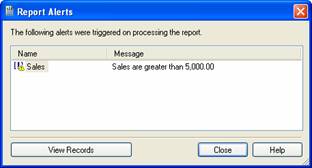
Figure 8-16. Prompting the user that there are report alerts.
The Report Alerts dialog lists each report alert that was triggered and gives a message describing what it is. The user has the option to view the records that triggered the alert or to close the dialog box and just view the report in its entirety. If the user clicks the View Records button, a new tab opens showing the report with only the records that caused the alert.
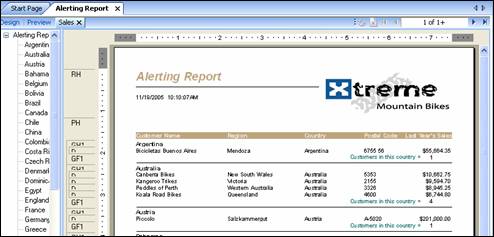
Figure 8-17. Viewing report alert records.
Since the report alert tab only shows the records that triggered the alert, this is effectively the same as creating a report and using a record selection filter. Whereas, the record selection formula is the same as the report alert. The difference being that with report alerts you have the option of viewing the whole report or just those specific records. When using a record selection formula, you can only view the records that meet the criteria. But don't think that record selection formulas and report alerts are mutually exclusive. It is perfectly acceptable to have a report that uses a record selection formula and also have report alerts to notify the user of special circumstances.If you close the alert tab and want to see the alerts again, you can either refresh the report or select the menu items Report | Alerts | Triggered Alerts.
To read all my books online, click here for the Crystal Reports ebooks.