

Chapter 2 - Learning the Report Designer
See how to set the designer's properties and how to setup the report's basic structure. Secondly, you learn how to add and manipulate report objects within the designer. The tutorials give you practice creating and modifying the many report objects.
 Become a Crystal Reports expert with the authoritative resource available.
The tuturials and tips in this book will take your skills to the next level.
Become a Crystal Reports expert with the authoritative resource available.
The tuturials and tips in this book will take your skills to the next level.Buy at

This is an excerpt from the book Crystal Reports Encyclopedia.
Click to read more chapter excerpts.
Printing Wingding Fonts
Don't think that printing graphics involves just displaying JPG and BMP files. You can also get some interesting results using the non-standard fonts. One font in particular that is very useful is the Wingdings font. For example, open the Windows Character Map application and select the Wingdings font from the dropdown box. You'll see the characters in Figure 2-21.
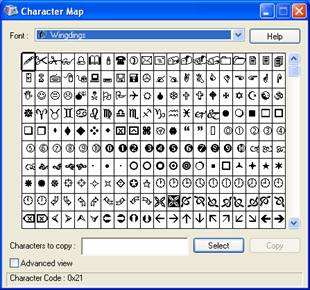
Figure 2-21. A sample of the Wingdings characters
Tutorial 2-3. Using Wingdings Font to Display a Book Icon.
Let's walk through an example of how to add a picture of a book to the report.
- Open the Character Map application on Windows XP, select Start | All Programs | Accessories | System Tools | Character Map.
- Choose the font Wingdings.
- Look at the first row and find the picture of a book. It should be the sixth picture on the left.
- Double-Click on the book picture (that makes it appear at the bottom) and click the Copy button. It has been saved to the Clipboard's memory.
- Go into the Crystal Reports' designer and add a new text object. This puts you in edit mode.
- Press Ctl-V to paste the picture into the text box. You should see the picture of the book in the text object.
To read all my books online, click here for the Crystal Reports ebooks.