

Chapter 2 - Learning the Report Designer
See how to set the designer's properties and how to setup the report's basic structure. Secondly, you learn how to add and manipulate report objects within the designer. The tutorials give you practice creating and modifying the many report objects.
 Become a Crystal Reports expert with the authoritative resource available.
The tuturials and tips in this book will take your skills to the next level.
Become a Crystal Reports expert with the authoritative resource available.
The tuturials and tips in this book will take your skills to the next level.Buy at

Formatting Paragraphs
The text objects we've created so far only display one line of text. But some formatting options are designed to make it easy to display text in paragraph format. It's easy to make a text object larger to display multiple lines. Just make the text object taller and select the Paragraph tab from the Format Editor dialog box.
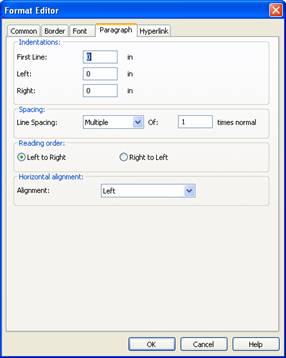
Figure 2-12. Paragraph properties on the Format Editor dialog box.
The top portion has the paragraph indentation properties for the first line and left and right margins. This lets you offset the first line from the rest. The other options control the line spacing and the alignment.If you have to print a lot of text in one area, some parts of the text might need to be formatted differently than the rest. For example, you might want to underline certain words to signify importance. Rather than format a bunch of text objects and line them up side by side, Crystal Reports supports RTF (Rich Text Format) output. This means that a single text object can have multiple formats applied to different parts of the text. It's very easy to do. Just type in all the text as normal, and then go back and highlight the text that needs special formatting and apply the new formatting. Let's try another example.
Tutorial 2-2. Applying Multiple Formatting Properties
- Add a new text object anywhere on the report and make it tall enough to show a few lines of text. But don't make it too long.
- Enter some text to fill up the text object. Notice how the cursor automatically moves to the next line when it gets to the edge of the box.
- Right-click on the text object and select Format Text. Click on the Paragraph tab.
- We want the first line to be indented and the margins to be offset from the border of the text object.
- Enter 0.25 for the First Line property. Enter 0.05 for both the Left and Right properties. Click the Ok button. Notice how much nicer it looks.
- Let's change some of the formatting within the text. Double-click inside the text object to put it in edit mode. Highlight one of the words and make it bold. Highlight another word and make it underlined. Your paragraph might look similar to mine.
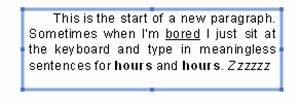
The benefit of learning how to format text objects is that the same formatting can be done to many of the objects on a report. For example, the next section discusses the field object and it can be formatted just like text objects.
To read all my books online, click here for the Crystal Reports ebooks.