

Chapter 2 - Learning the Report Designer
See how to set the designer's properties and how to setup the report's basic structure. Secondly, you learn how to add and manipulate report objects within the designer. The tutorials give you practice creating and modifying the many report objects.
 Become a Crystal Reports expert with the authoritative resource available.
The tuturials and tips in this book will take your skills to the next level.
Become a Crystal Reports expert with the authoritative resource available.
The tuturials and tips in this book will take your skills to the next level.Buy at

This is an excerpt from the book Crystal Reports Encyclopedia.
Click to read more chapter excerpts.
To read all my books online, click here for the Crystal Reports ebooks.
Setting Report Options
After setting the options for customizing the report design experience, the next step is customizing the settings for an individual report. There are different options that affect a report's behavior and how it's printed. These changes are based upon how the report is to be used. They are discussed next.
Summary Info
Each report has summary information associated with it. This makes it easy to determine who designed the report and what its purpose is. The Document Properties dialog box is where you enter this information. Open it by selecting the menu options File | Summary Info.
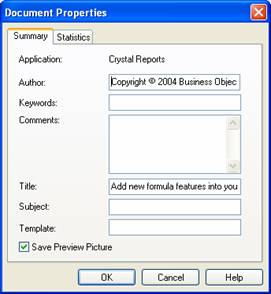
Figure 2-6. The Document Properties dialog box sets the summary info.
One interesting benefit of saving Summary Info is that its information is displayed in the Open File dialog box. The fields you can enter information for are: Author, Keywords, Comments, Title and Subject. This makes it easy to find out about a report and see a preview of it before opening it. Considering that report file names sometimes use cryptic abbreviations, this makes it easier to determine which report to open. Enabling this feature of the Open File dialog box is discussed later in the chapter.Crystal Reports gives you a few different fields for setting the report summary. These make it easier for someone else to look at the report and quickly see what the report does as well as find out who to contact if there are any questions.
The Save Preview Picture checkbox sets whether or not to save a snapshot of the first page of the report with the report file. If a preview picture is saved, then you will see a snapshot of the report when opening a file.
Miscellaneous Report Options
The last location for setting report options is the Report Options dialog box. It lets you set a variety of different options such as database optimization settings, using report alerts, the handling of grouping data, etc. I hesitate to mention this dialog box at this point in the book because all these options are advanced settings and aren't appropriate for an introductory chapter. All these topics are discussed within the appropriate chapters later in the book. However, just so that you see what I'm talking about, you can get to the Report Options dialog box by selecting the menu options File | Report Options. It is shown in Figure 2-7.
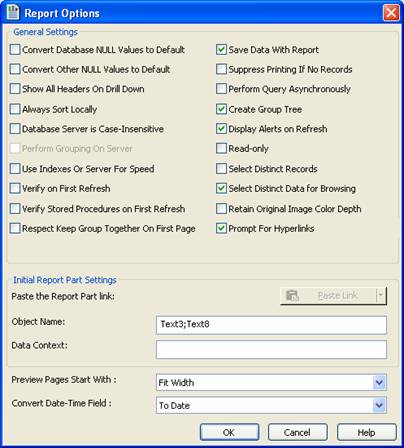
Figure 2-7. The Report Options dialog box.
To read all my books online, click here for the Crystal Reports ebooks.